
Repositories
A Buf Schema Registry (BSR) repository hosts a single Protobuf module’s commits, labels, and label history. The relationship is 1:1: one repository corresponds to one module, identified by the module’s name key in buf.yaml.
Repositories behave like a version control system for schemas, with commits, labels, and diffs, but they live only in the BSR. You can’t clone or fork them. They sit alongside your VCS rather than replacing it.
A repository is addressed by a three-part URL:
Module/repository name syntax
https://BSR_INSTANCE/ORGANIZATION/REPOSITORY

# Examples
https://buf.build/acme/petapis       # Public BSR (Community or Teams plan)
https://example.buf.dev/acme/petapis # Pro plan, custom subdomain on buf.dev
https://buf.example.com/acme/petapis # Enterprise plan, custom domain
The URL elements:
BSR_INSTANCE: hostname of the BSR serving the repository. The public BSR isbuf.build. Pro and Enterprise customers run a private BSR instance at a custom domain.ORGANIZATION: an organization on that BSR instance.REPOSITORY: the name chosen for this repository when it was created.
Creating and managing repositories requires a Buf account with the appropriate role on the owning organization.
Create a repository
Repositories are owned by organizations, so you need an organization to create the repository under. See Manage organizations if you need to create one first.
From the BSR web app:
- Sign in to the BSR.
- From Your organizations, open the organization that will own the repository.
- Click Create repository.
- Enter a name, pick the visibility, and click Create.
From the Buf CLI:
Create a repository
buf registry module create BSR_INSTANCE/ORGANIZATION/REPOSITORYNaming rules
A repository’s name and owner can’t be changed after creation. Choose with care.
A valid name:
- Is unique within the owning organization.
- Is 2 to 100 characters long.
- Starts with a lowercase letter.
- Contains only lowercase letters, digits, and hyphens.
- Doesn’t end with a hyphen.
- Doesn’t contain profanity or a reserved word.
Once the repository exists, it’s ready to receive pushes.
Visibility
A repository is either public or private on the BSR instance that hosts it. Visibility controls read access; write access is always limited to users with a write-capable role on the repository.
| Instance | Public repository | Private repository |
|---|---|---|
Public BSR (buf.build) | Readable by anyone on the internet. | Readable only by users granted a role on the repository. |
| Private BSR instance | Readable by any user authenticated on the instance. | Readable only by users granted a role on the repository. |
A private BSR instance can optionally disable authentication for public modules. Check with your BSR administrator if you’re not sure which applies.
Change visibility
From the web app, open the repository’s Settings page and click Change visibility.
From the Buf CLI:
Change a repository's visibility
buf registry module settings update BSR_INSTANCE/ORGANIZATION/REPOSITORY --visibility [public|private]Access and ownership
Repositories are owned by organizations. Roles on the owning organization flow down to every repository it owns. You can also grant a user direct access to a single repository.
Repository roles, in increasing order of privilege, are Read, Limited Write, Write, Admin, and Owner. See Roles for the full capability matrix. A role granted directly behaves the same as a role inherited from the organization or from an IdP group; the BSR settings UI distinguishes the source, not the effect.
Changing repository settings, deprecating the repository, deleting it, and managing its members all require the Admin or Owner role, either direct or inherited.
Member management runs through the BSR web app. If your instance assigns roles through IdP groups, see Manage user access with IdP groups instead.
Add a member
To grant a user direct access to a repository:
- Open the repository’s Settings page at
https://BSR_INSTANCE/ORGANIZATION/REPOSITORY/settings. - In the Manage access section, click Add direct access members.
- Search for the user, set the role you want them to have, and click Add.
Change member access
- Open the repository’s Settings page.
- Find the user in the Direct access section.
- Pick the new role from the Role dropdown and confirm.
Remove a member
- Open the repository’s Settings page.
- Find the user in the Direct access section.
- Click the trash can at the end of the row and confirm.
Metadata
Each repository can carry a source URL and a short description. Both appear in the repository list for anyone with access:
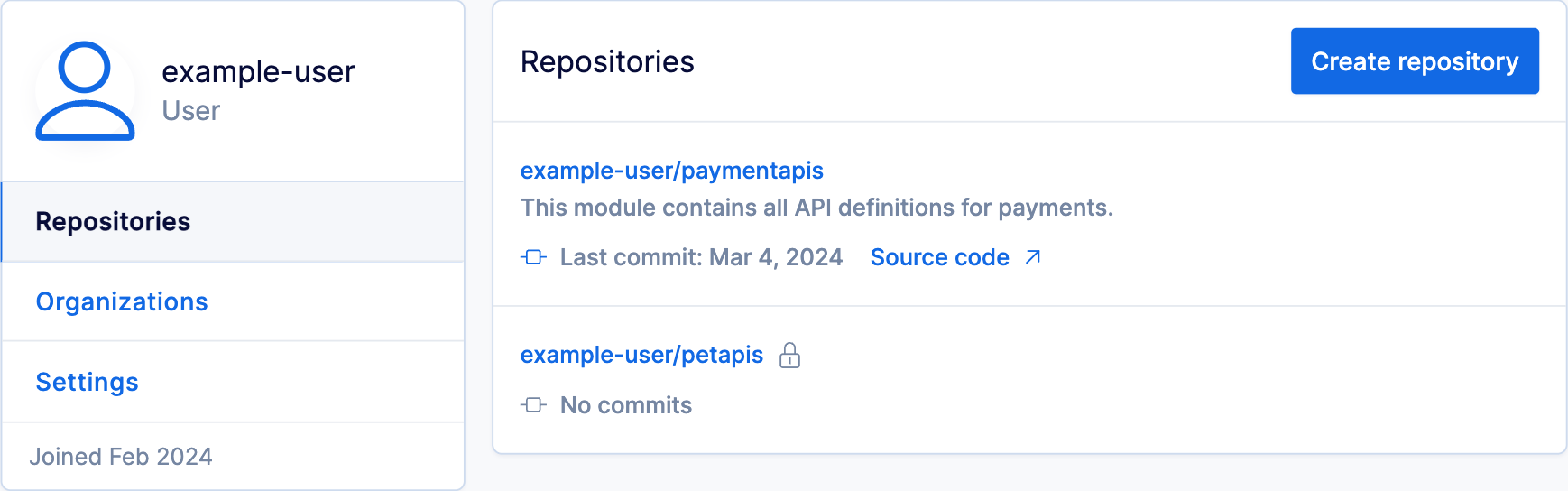
- Source URL links the BSR repository back to the VCS repository holding the
.protofiles. Useful when pushes come from CI and a reader needs to trace a commit to the underlying change. - Description is free text, up to 350 characters.
To set metadata from the web app:
- Open the repository’s Settings page at
https://BSR_INSTANCE/ORGANIZATION/REPOSITORY/settings. - In the General section, fill in the source URL, description, or both, and click Save.
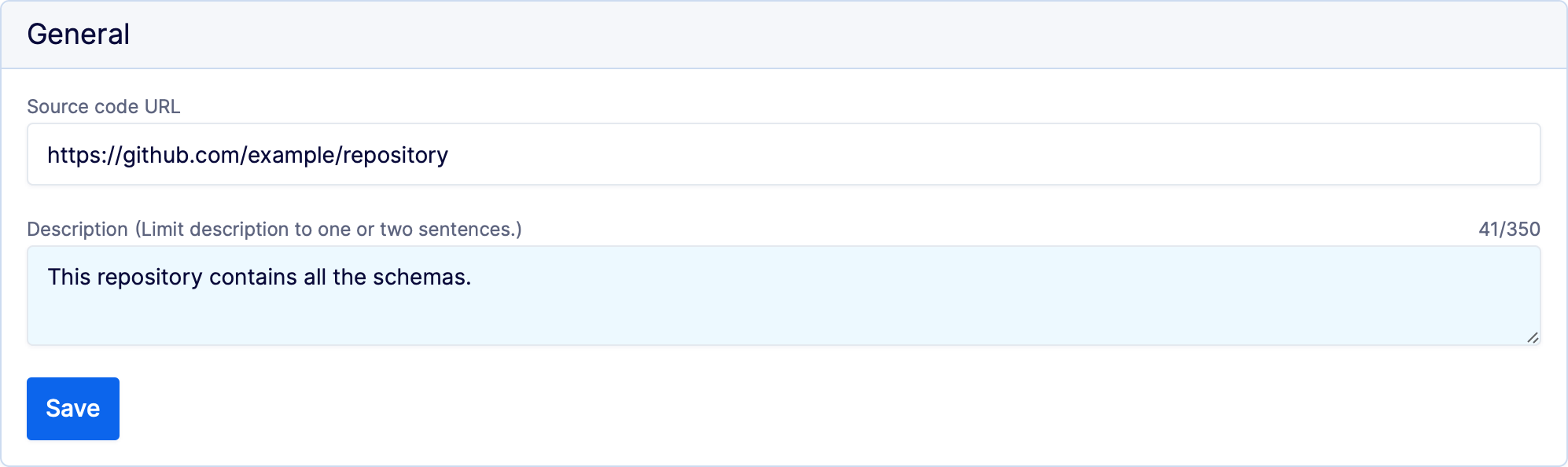
From the Buf CLI:
Update description and source URL
buf registry module settings update BSR_INSTANCE/ORGANIZATION/REPOSITORY \
    --description "Pet store APIs" \
    --url https://github.com/acme/petapis
Default label
Every repository has a default label. The BSR uses the default label whenever an operation doesn’t specify a commit or label explicitly:
- References to a module without a commit or label resolve to the latest commit on the default label.
- A push with no label attached is applied to the default label. We recommend specifying a label on every push rather than relying on this fallback.
- A commit on the default label at push time becomes the latest released commit for generated SDKs.
A new repository’s default label is main.
Set the default label to match the VCS branch you release from. For teams doing continuous deployment, that’s usually the VCS default branch. Matching the branch means:
- Dependency references resolve to what’s released.
- Docs on the BSR show what’s released.
- Dependency-update tools like Dependabot and Renovate keep downstream clients on the latest released generated SDK.
Change the default label
To change the default label from the web app:
- Open the repository’s Settings page and go to Change default label.
- Start typing in Select new label. Matching labels appear as you type.
- Pick a label and press Enter.
If the label you want is archived, unarchive it first, either by pushing again with that label or by running buf registry module label unarchive.
Restrictions
- The new default must be an existing, non-archived label.
- If policy checks are enabled on the repository, the default label can’t be changed. Disable the policy check first if you need to move the default.
Deprecate a repository
Deprecating a repository signals that depending on its module is no longer recommended. buf dep update prints a warning to any user whose workspace depends on a deprecated repository.
From the web app, open the repository’s Settings page and use the deprecate or undeprecate control.
From the Buf CLI:
Deprecate a repository
buf registry module deprecate BSR_INSTANCE/ORGANIZATION/REPOSITORYUndeprecate a repository
buf registry module undeprecate BSR_INSTANCE/ORGANIZATION/REPOSITORYDelete a repository
Warning
Deleting a repository immediately breaks every module that depends on it. This action can’t be undone.
To delete a repository, open its Settings page and click Delete repository. You need the Admin or Owner role on the repository.
After deletion, the repository’s name becomes available again and can be reused by the same organization.