Customize BSR appearance
Admins of private BSR instances can replace Buf’s branding with their own: brand color, default color mode, logo, favicon, and fonts. Changes apply across the entire instance.
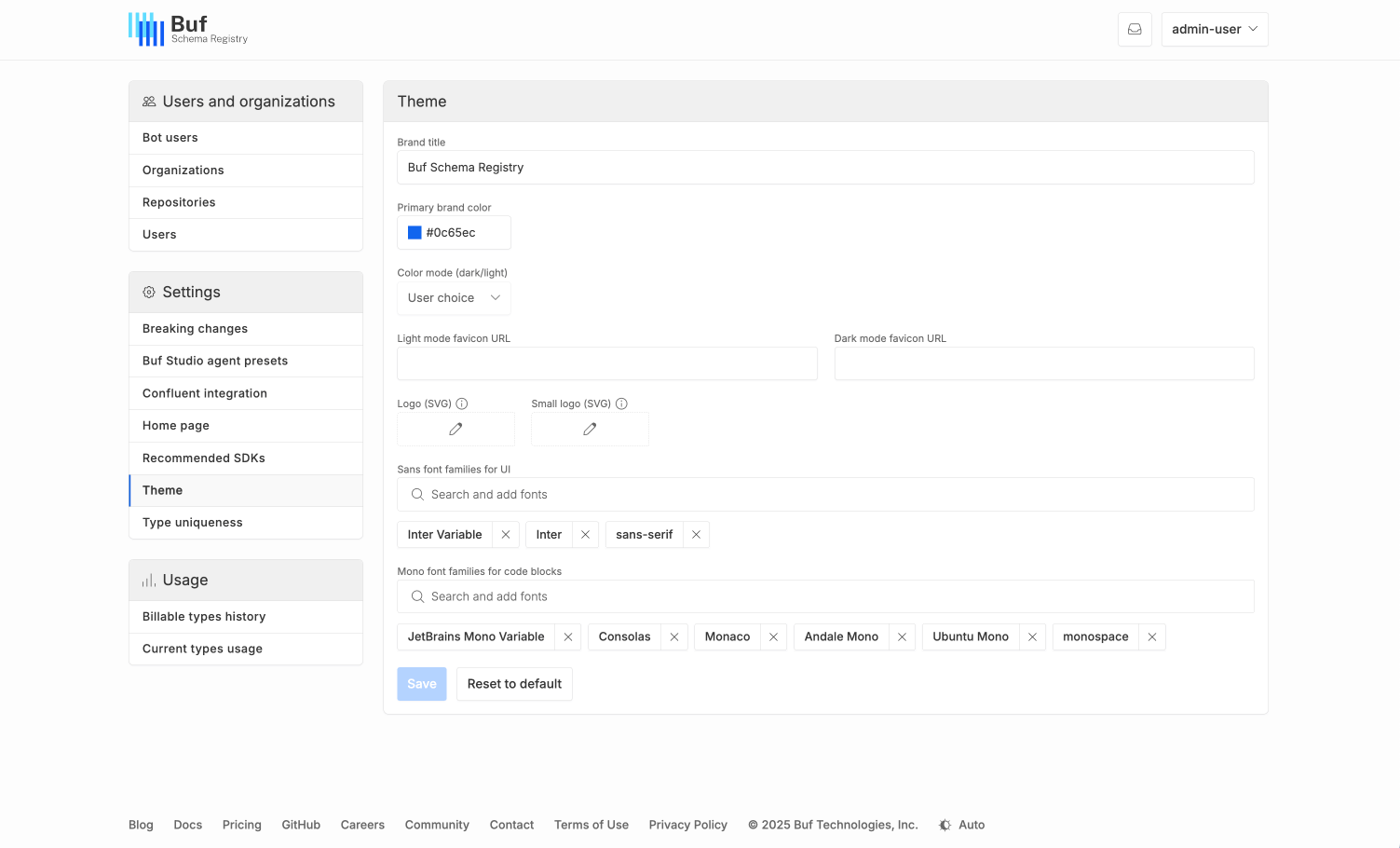
This page covers what each setting controls and how to change it. The settings themselves live under Admin panel > Theme:
You need the admin role to access this panel.
Brand color
The brand color applies to links, buttons, toggles, highlighting, and other interactive UI elements. The BSR derives lighter and darker shades from it for hover states, backgrounds, and related elements, so staying away from extremes (very near-white or near-black) helps keep those derived colors readable. There’s no built-in contrast check; the guidance is advisory.
Default color mode
Pick one of three options:
- Light or Dark: forces that mode across the instance.
- Auto: lets each user select their preferred color profile (light, dark, or follow system).
Logo and favicon
Replace Buf’s logo with your company’s logo in the header, and replace the default favicons used in browser tabs and bookmarks.
Fonts
Two font slots are configurable: one for UI text and one for code blocks. Each slot holds an ordered list of fonts, following the behavior of the font-family CSS property: the browser tries the first font, falls back to the second if it’s unavailable, and so on. The panel displays the current list left to right.
To remove a font, click the X next to its name.
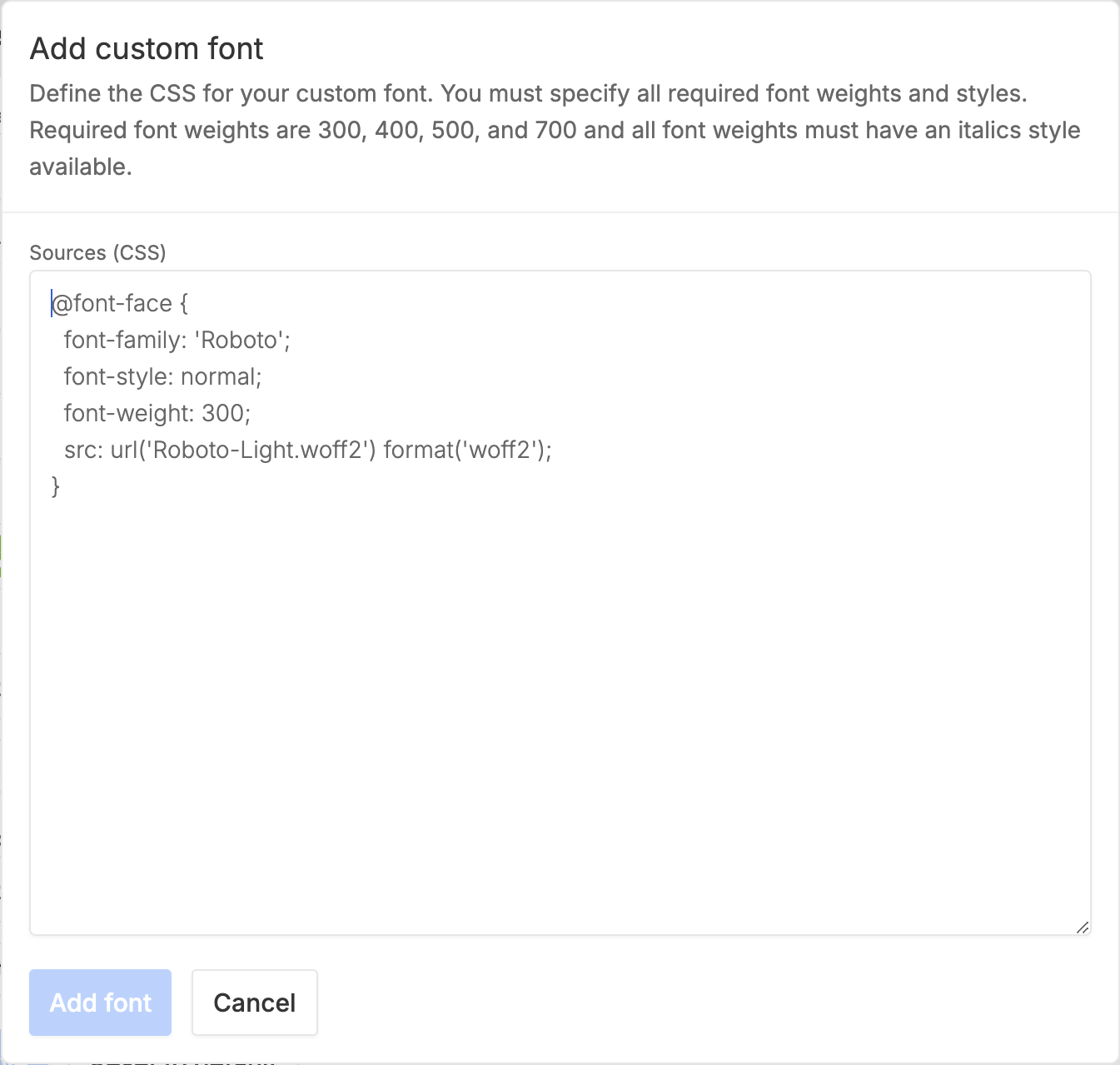
To add a font, click into the search bar. You can either pick a font from the list or manually define a custom font: