
Uniqueness check
The BSR uniqueness check ensures that each Protobuf type name and file path appears only once across modules in your BSR instance or organization. This page describes how to enable and disable the unique type names and file paths check on your private BSR instance and/or organization.
BSR server uniqueness check
WARNING
This feature is only available on the Enterprise plan.
The BSR's server uniqueness check enforces that each Protobuf type name and file path appears only once across all organizations and modules in your instance. This enables features such as server reflection, allowing you to uniquely resolve Protobuf types and files across your entire BSR instance. You must be a BSR administrator to access these settings.
This check is enabled by default.
Organization uniqueness check
The organization uniqueness check enforces that each Protobuf type name and file path appears only once across all modules in a single organization. All new organizations are created with this setting enabled. It can't be disabled.
How it works
When the uniqueness check is enabled, the BSR checks that all Protobuf file paths and type names are unique. Only schemas pushed to the default label are checked for uniqueness. Some modules are exempt from this check.
Pushes that fail this check don't enter the review flow and are always rejected.
Disabling the uniqueness check
Only the BSR server uniqueness check can be disabled. An admin can disable it to allow duplicate type names or file paths across modules:
Go to the Admin panel and select Checks in the Settings section of the menu.
Turn the Enforce unique types and file paths toggle off.

The uniqueness check is now disabled for your instance.
Enabling the server uniqueness check
The BSR server uniqueness check is only available on the Enterprise plan. Organization uniqueness check is enabled by default for all BSR organizations.
If you disabled the BSR server uniqueness check, or if your instance or organization was created before the uniqueness check was enabled by default, you can enable it either in the Admin panel for your BSR instance or in the settings panel for your organization. Setting up the instance-wide or organization-wide uniqueness check is a three-step process:
- Scan for collisions
- Resolve collisions
- Enable the uniqueness check.
The following sections provide detailed instructions for each step:
Scan for collisions
The scan checks your BSR instance or organization (except for certain excluded modules).
Go to the Admin panel or organization settings and browse to the Checks section. BSR server uniqueness check settings are available at
https://buf.build/admin/checks. Organization uniqueness check settings are available athttps://buf.build/ORGANIZATION/settings/general.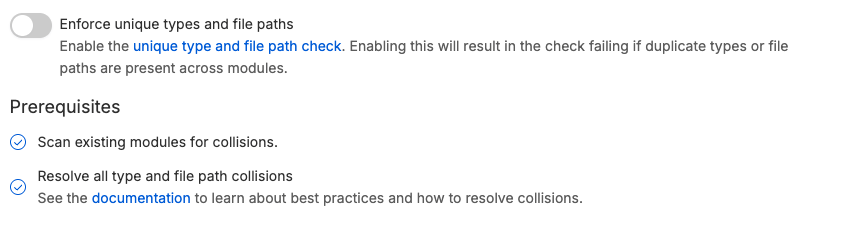
In the Unique types and filepaths section, click the link in the Prerequisites section to start the scan, then confirm in the prompt window that appears.
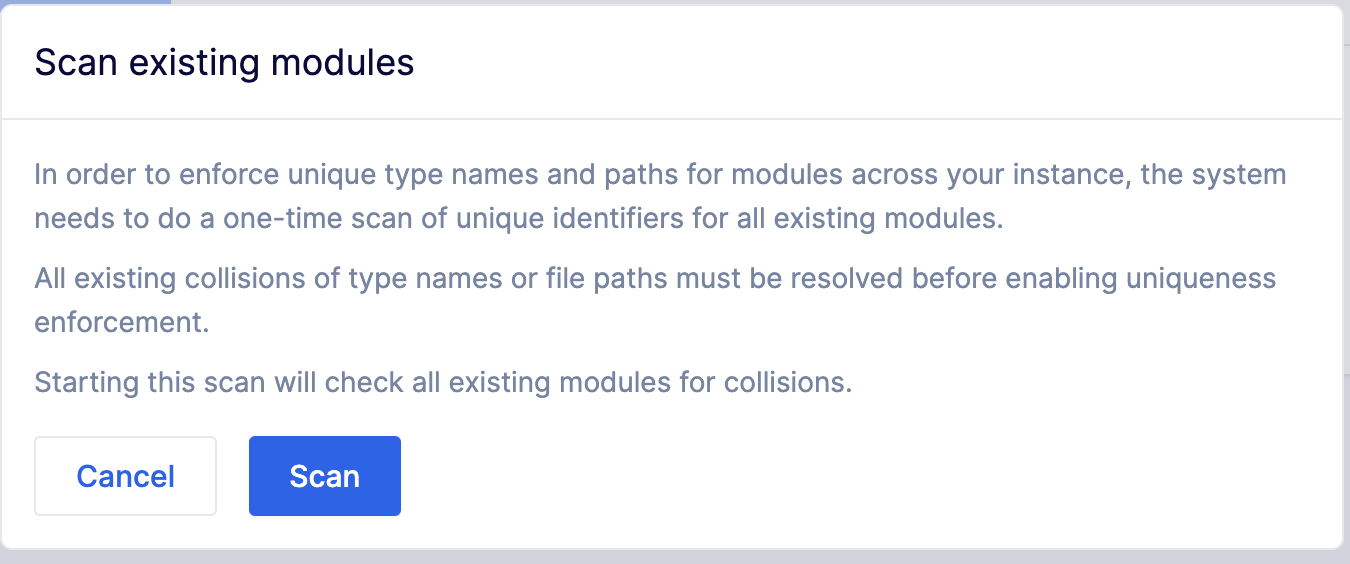
The BSR then scans modules to create a list of all fully qualified names and .proto file paths. When the scan is complete, you’ll see separate lists of any type and path collisions that exist in your schemas. Each of these needs to be resolved and then re-pushed to the BSR before uniqueness can be enforced.

Resolve collisions
To resolve these collisions, you need to adjust the colliding type names or paths and make new commits. Our style guide and recommendations on package and file naming can help you determine how to resolve these collisions.
In brief, there are two common ways to resolve collisions:
- Rename the package. The best place to start is to ensure that packages are uniquely named. This should resolve almost every collision. To paraphrase our documentation, follow a basic package naming convention of
{organization/user}.{purpose}.{version}: even if there are many instances ofAddress,User, or other common names, they’ll be uniquely identifiable by the package they’re in, such ascompany.inventory.v1.Addressorcompany.register.v1.Address. - Rename files to follow package naming. If you've followed the first step, the next change is to align file names/paths with the packages. For example, if you have a
company.inventory.v1.Addressmessage in a fileaddress.proto, move the file tocompany/inventory/v1/address.proto.
For more in-depth recommendations, refer to the style guide.
Enable uniqueness check
Once the prerequisites are met, the feature toggle is enabled.
Return to the BSR server or organization settings panel and browse to the Checks section of the settings.
Turn the Enforce unique types and file paths toggle on.
The uniqueness check is now enabled for your instance or organization.
Modules exempt from this check
When checking for unique file paths and type names, the BSR ignores the Buf-managed modules, given that their sources aren't managed by Buf or by BSR administrators or users. This allows BSR users to have their own copies of any of those modules, and/or reuse some of those file paths. The BSR does report collisions across 2 or more non-managed modules, even if those file paths or type names are also present in the Buf-managed modules.